Chapter 1
Getting started
Rejoice! is a building-and-operations game where theology drives the architecture. You choose a tradition, build or inherit a church, and then run it Sunday by Sunday: its money, its staff and volunteers, its ministries, and the building itself. This chapter walks you from the title screen to your first Sunday.
The title screen
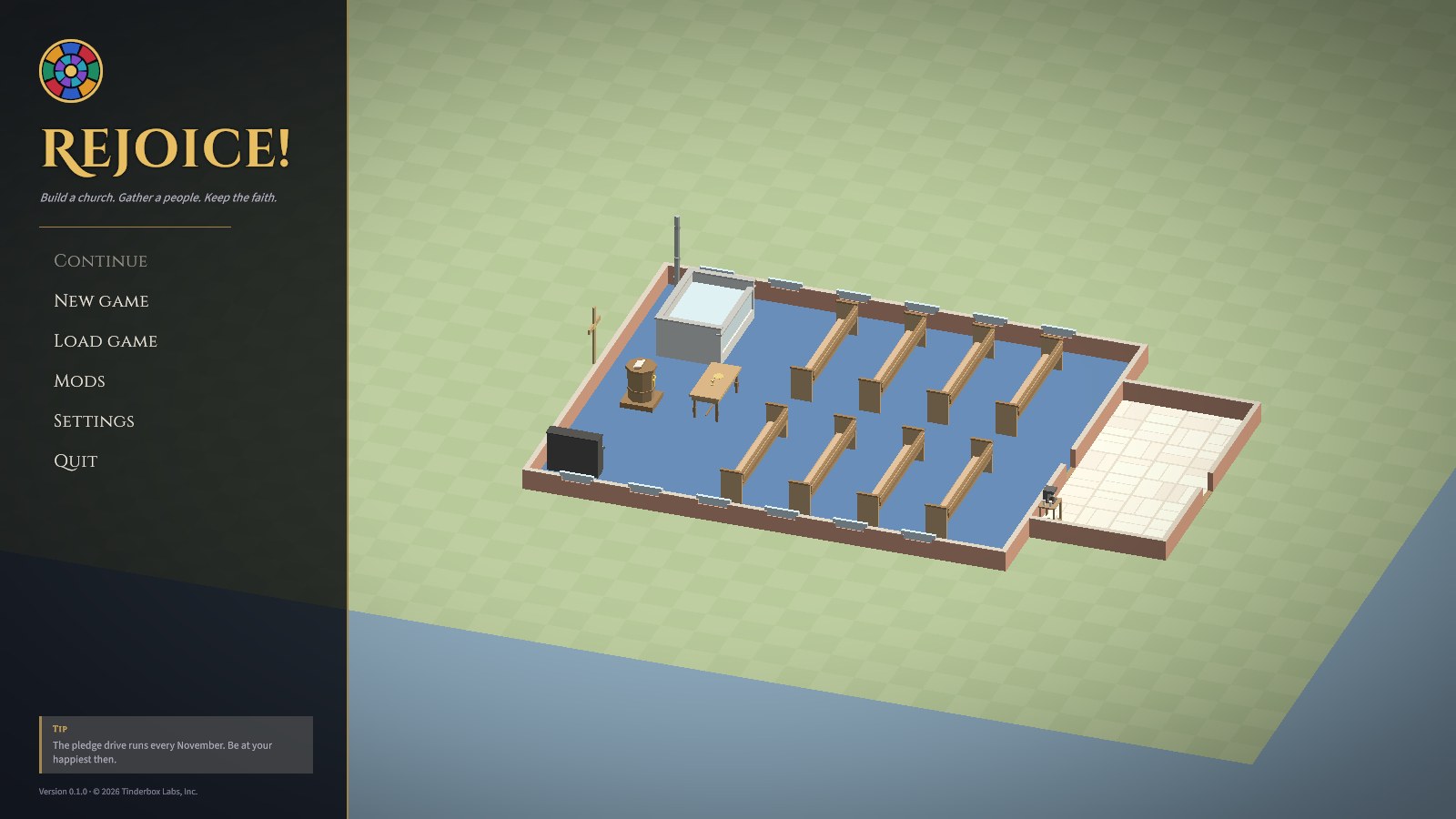
- Continue picks up your most recent save (or the monthly autosave).
- New game lists the scenarios, followed by free play.
- Load game shows your saves, each with a thumbnail of the church as it was.
- Mods shows the tradition packs you've installed and any problems in them, and is where you can found a tradition of your own (see Traditions, beliefs and stances).
- Settings has autosave, interface size, full screen, hints, sounds, and the music's volume.
Starting a game
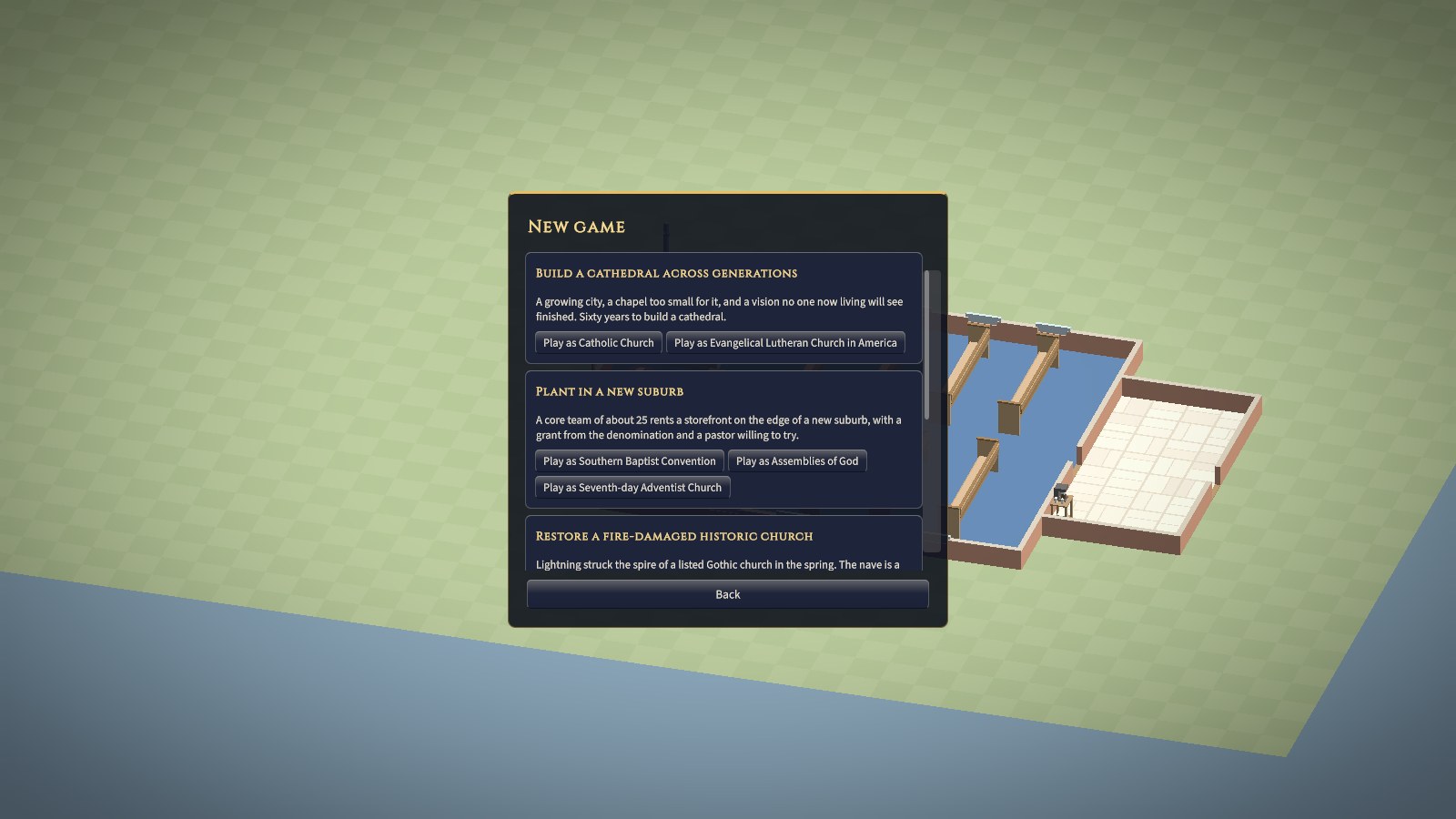
There are three ways to play.
Scenarios
A scenario hands you a particular church in a particular situation, with goals to reach and failures to avoid. There are four, each playable in two traditions:
| Scenario | Traditions | The situation |
|---|---|---|
| Revitalize a dying parish | Baptist, Catholic | About 120 people, mostly over 55, in a 1958 building built for twice that. The money runs out unless you act. |
| Plant in a new suburb | Baptist, Pentecostal | A core team of 25 in a rented storefront. Grow, then build a church of your own before the grant runs out. |
| Restore a fire-damaged historic church | Catholic, Lutheran | A listed Gothic church whose nave is a burnt-out shell. Raise the money, restore it, and bring the people home. |
| Build a cathedral across generations | Catholic, Lutheran | Sixty years to raise a nave for 800, twelve stained-glass windows, a pipe organ, and a steeple. |
Full walkthroughs are in Scenario walkthroughs.
Free play: a small church
A small church starts you at First Baptist Church: a nave of eight oak pews, a pulpit, a communion table, a baptistry, an upright piano, about 70 people, a bivocational pastor, $25,000 in the bank, and a $150,000 endowment. It's the easiest place to learn the controls. Most of the screenshots in the early chapters were taken there.
Free play: the sandbox
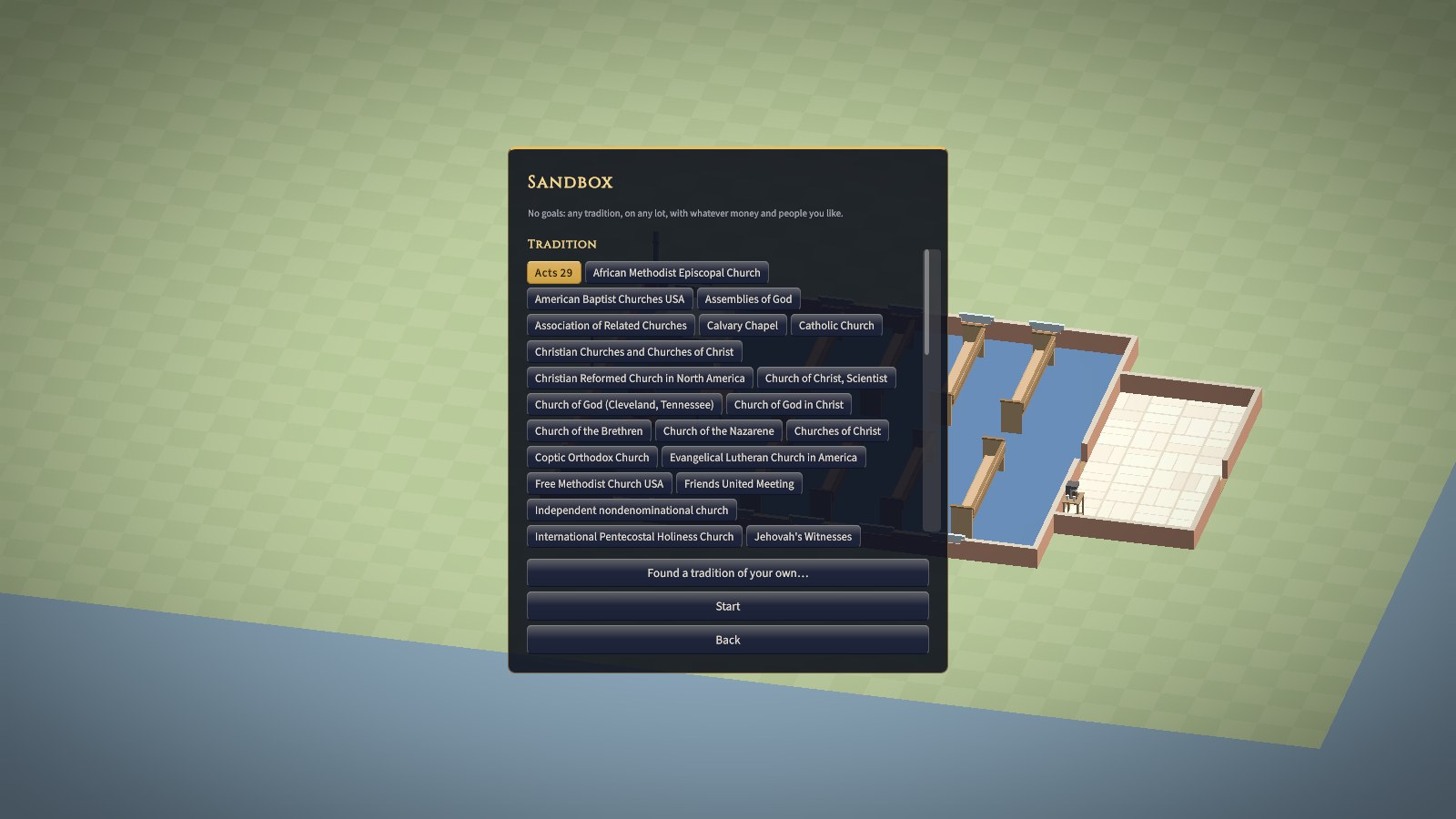
The sandbox gives you an empty lot with no goals. You choose:
- Tradition: any of the 40 shipped traditions, any installed from mods, or one you've founded.
- Lot: urban (40 × 32 m), suburban (64 × 48 m), or rural (96 × 72 m). See Rooms, materials, styles and lots.
- Money: $100,000, $500,000, $2 million, or $10 million to start.
- People: nobody yet (a true plant), 30, 100, or 300.
- Buy the land out of that: tick it, and the lot's price comes out of your starting money.
The books open at once, so building costs real money. But a sandbox church needs no approval for building work until it first passes the building check. After that, big work goes to whoever your tradition says decides (see Projects, approvals and conflict).
An empty lot with no tradition
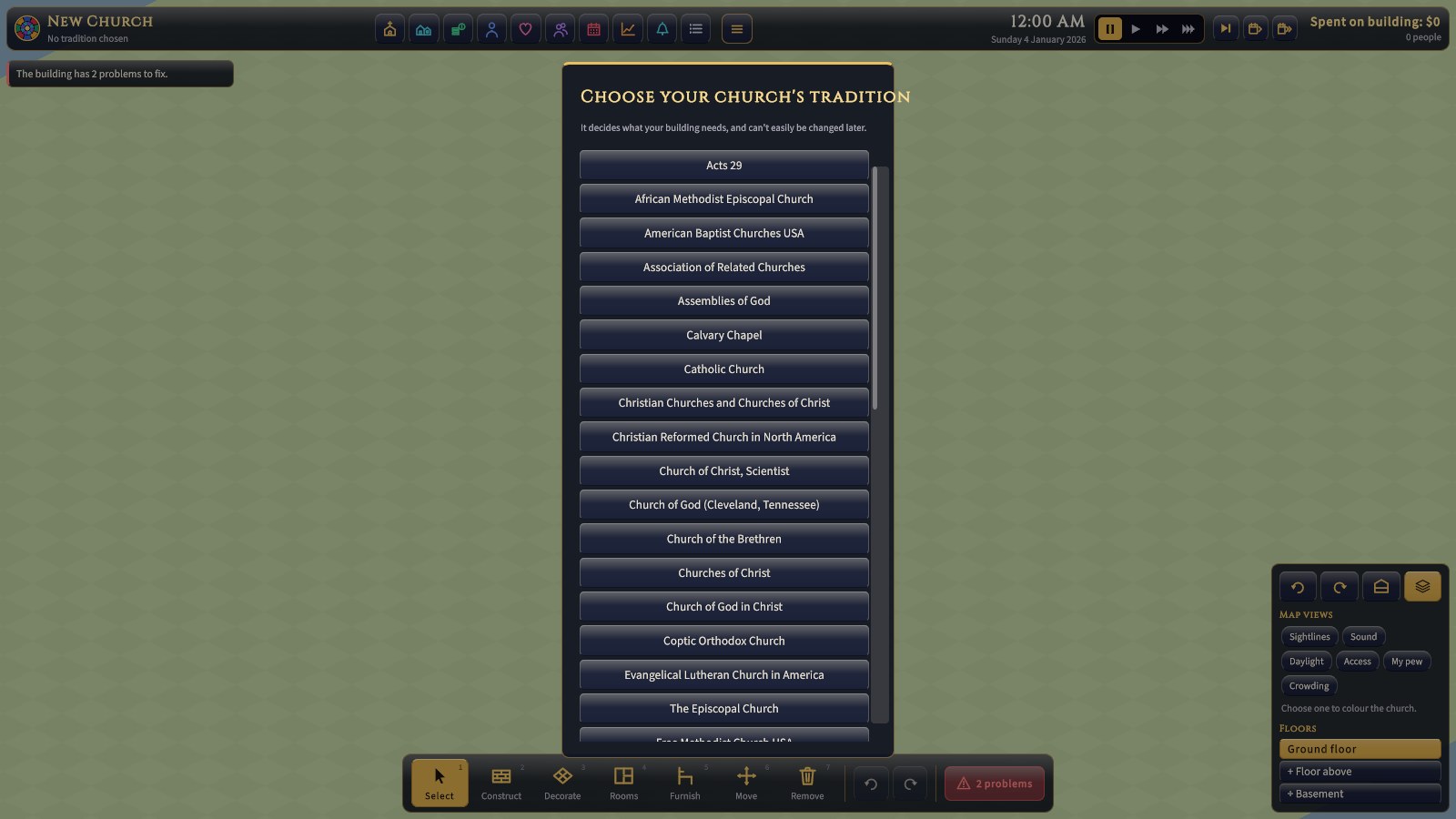
Whenever a church has no tradition chosen, the game asks for one before anything else. The choice is hard to undo: it decides which rooms and items are required, who approves projects, and what the congregation expects of worship.
The screen, piece by piece
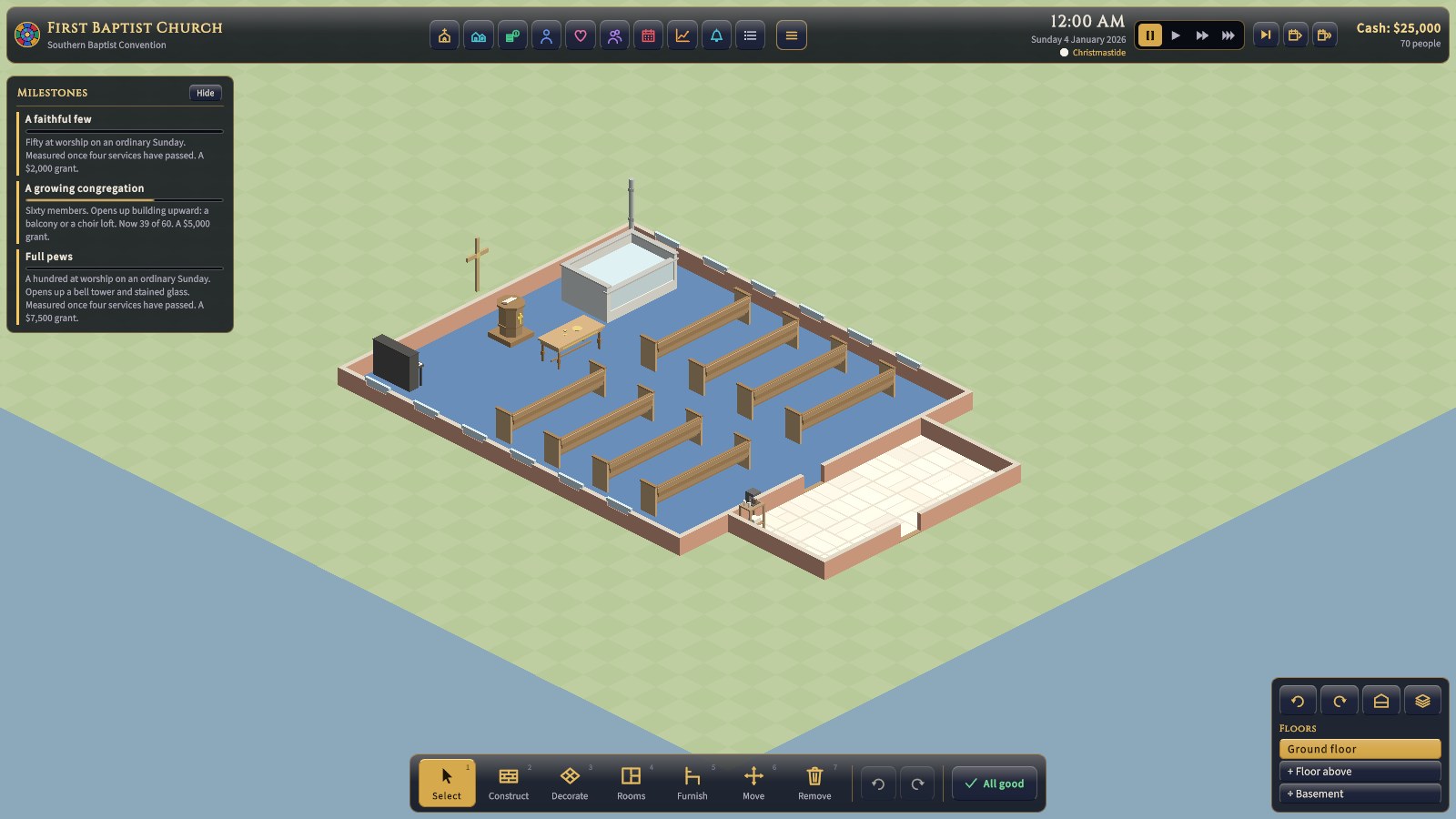
The interface sits round the edges of the screen, in panes of dark glass edged in gold, so the church in the middle stays in view. Rest the pointer on anything (a tile, a button, a card, an item in the church) and a tip appears beside it saying what it is; where a tip has a name, the name comes first, in gold.
The top bar
The bar across the top always stays on one row. From left to right:
- The church's rose window, name, and tradition.
- A row of tiles, one for each screen. Each tile is a picture in its own colour of glass. Rest on it for its name; click it to open the screen; click it again (or press Esc, or the × at the screen's top right) to close it. The tile of the open screen is lit, and the screen carries the same picture and colour along its top edge, so you always know where you are. Only one screen is open at a time, and the clock waits while one is.
- The clock: the time, the date, and below them the day in the church year with its liturgical colour (a small swatch). While a service is on, it also says what's happening and where: Now: Sermon, from the pulpit.
- Pause and the three speeds, set into the bar. Pause is lit gold whenever time is stopped, for whatever reason (see How time passes).
- Three skip tiles: Next service (a play mark with a bar), Skip a month (a calendar page and one arrow), and Skip a year (a calendar page and two arrows).
- The cash (red when you're overdrawn), how many people the church has, and how many came at the last service. In a sandbox with the books closed, it shows what you've spent on building instead.
| Tile | Colour | What it opens | Chapter |
|---|---|---|---|
| Church (a church with a cross) | Gold | Goals; the church itself (name, style, orientation, access, comfort, growth, lot, climate); Worship; Services; Projects; Beliefs; the Denomination | 4, 7, 11, 13 |
| Community (houses) | Aquamarine | Ministries, rentals, weddings and funerals, fundraising, and evangelism | 12 |
| Finances (coins) | Emerald | Overview, Monthly, Weekly, and Budget | 8, 9 |
| Staff (a minister in a collar) | Sapphire | Who's on the staff, hiring, pay, and training | 10 |
| Volunteers (a heart) | Rose | Greeters, ushers, nursery workers, choir, musicians, A/V techs, and how worn out they are | 10 |
| Congregation (two people) | Amethyst | Everyone in the church, how happy they are, and the services they come to | 3 |
| Calendar (a calendar page) | Ruby | The month: services, feasts and seasons, gatherings, Sunday school, and occasions | 7 |
| Reports (a rising line) | Topaz | Attendance, giving, and engagement over time, and each year in review | 3, 8 |
| Last service (a bell) | Aquamarine | The service report, bottom left: who came, when they sat down, who stood | 2 |
| Event log (a list) | Silver | Every message this game, newest first, with when it happened | 15 |
| Menu (three lines) | Gold | Resume, save, load, settings, main menu, quit (also Esc) |
On a narrow window, or with a large interface size, the bar makes room rather than wrapping. First the tiles close up. Then they shrink, the date is shortened, and the tradition, the day in the church year, and the head count are left out (they're all still on their screens). If even that won't fit, the whole bar is drawn a little smaller.
Down the left: alerts and goals
Alerts name what needs seeing to: a building problem, the money, short-handed rotas, a vote or decision coming. Each is edged in how urgent it is (red to fix, amber to watch, blue to know), and clicking one opens what fixes it. Below them are a scenario's goals, or in a free game the next milestones, each with a bar showing how near it is: edged amber while it's open, green once it's met, red if it's been missed. Hide folds them away.
Along the bottom: the build bar
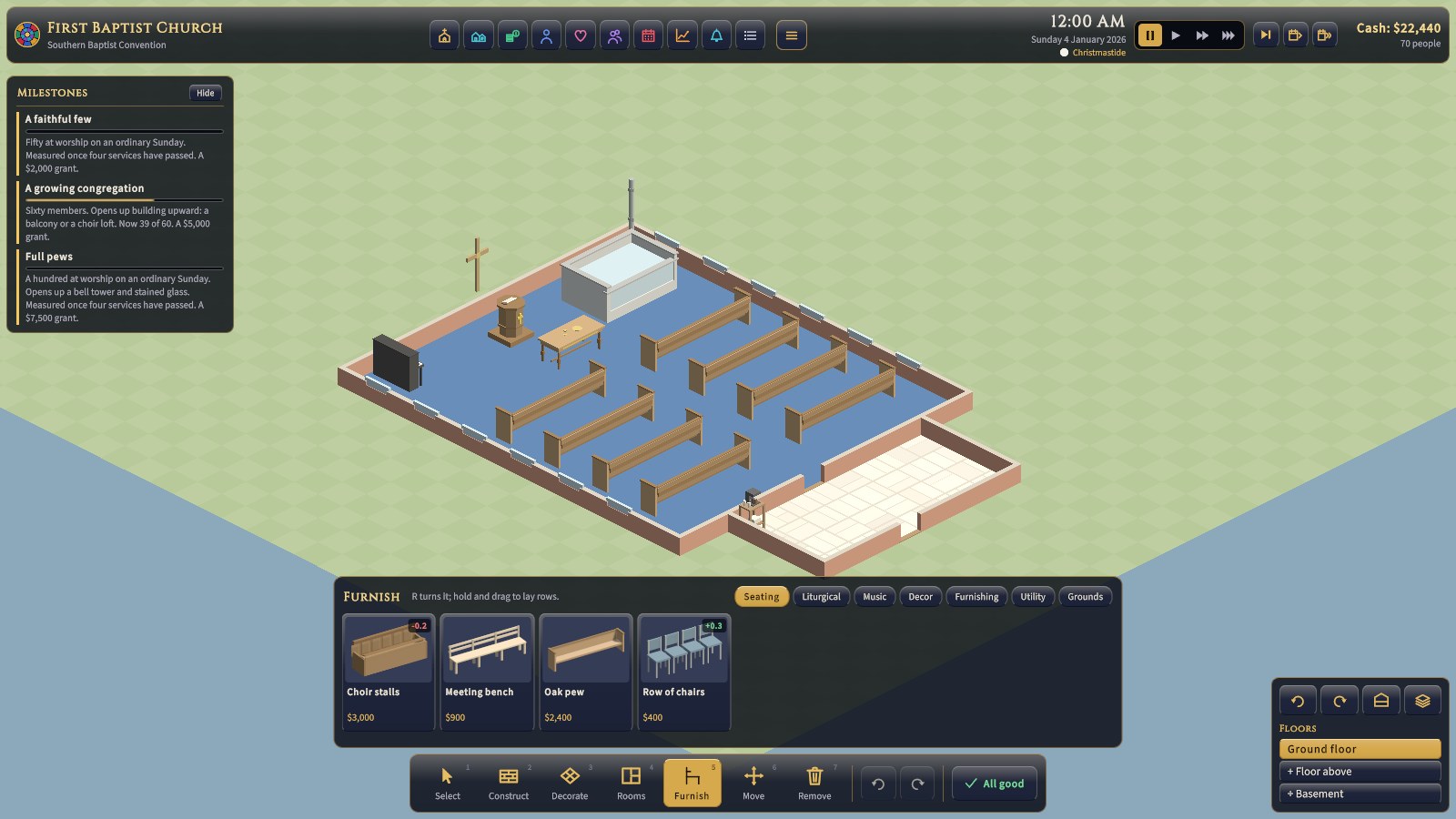
The building tools, numbered 1 to 7 for the keyboard: Select, Construct (walls, doors, windows), Decorate (floors and wall finishes), Rooms, Furnish, Move, and Remove. The chosen tool is lit gold. Construct, Decorate, Rooms, and Furnish open a tray of cards above the bar, in tabs, each with a picture, a name, and a price (in red, and faded, when you can't afford it). Rest on a card for what it does and how it compares with what's already in the church. Then come undo and redo, and the building check. All of these are covered in Building your church. When room is short (a large interface size on a small screen), the bar and its tray move left to stay clear of the view controls, and the tools close up to their pictures: rest on one for its name.
The building check is the last button on the bar: a green tick and "All good" when nothing is missing, or how many problems there are, on red (problems) or amber (notes only). Click it for the list of everything the building still lacks, most serious first. Red bars are problems: a missing nave or narthex, or something your tradition requires. Amber bars are notes: things expected, or worth knowing (such as an upper floor with no lift).
Messages
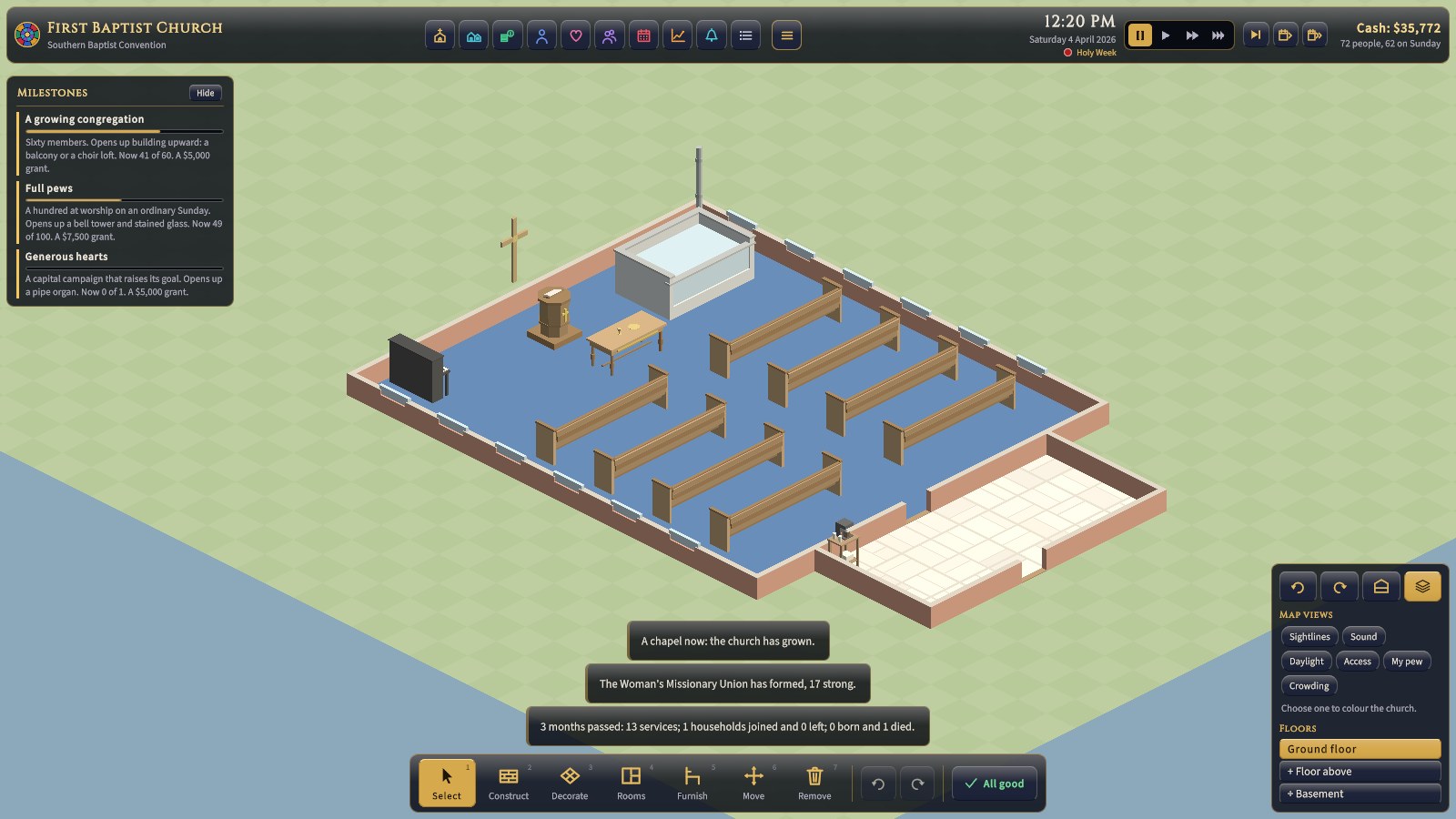
News appears above the build bar, edged like the alerts: red for something to see to, gold for news, green for good news. Routine news fades after a few seconds. Anything important (a problem, a decision on a project, a conflict) has a gold rim and stays, and the clock waits, until you dismiss it with its ×. Clicking a message opens the screen it's about. Every message, faded or not, is kept in the Event log.
When you build or remove something, the money spent rises in red from the spot (or the money back, in green).
Bottom right: the view controls
Four buttons along the top of the panel:
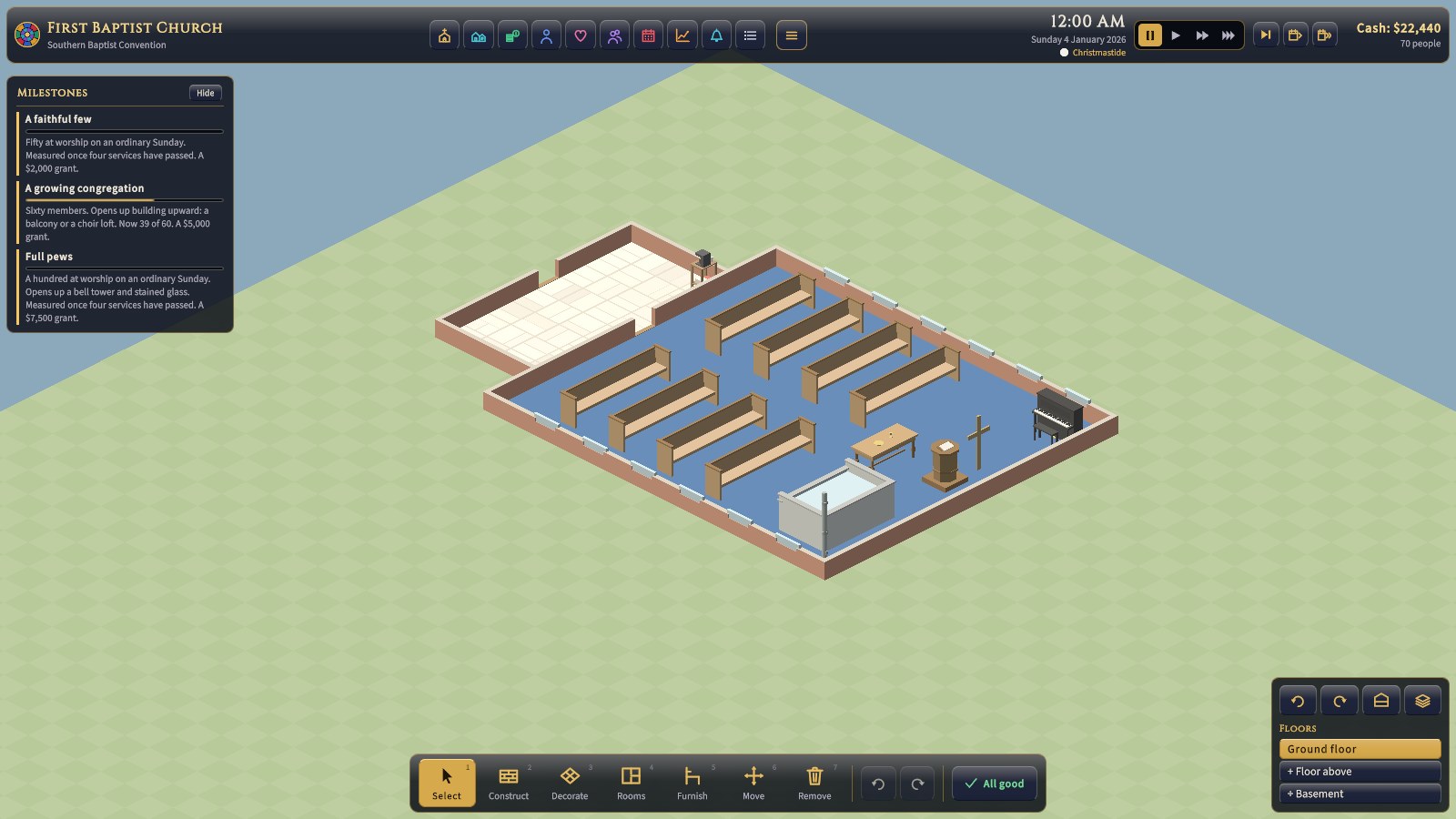
- Turn left and turn right, a quarter turn each (Q and E). Turn to see behind tall things like organs and screens.
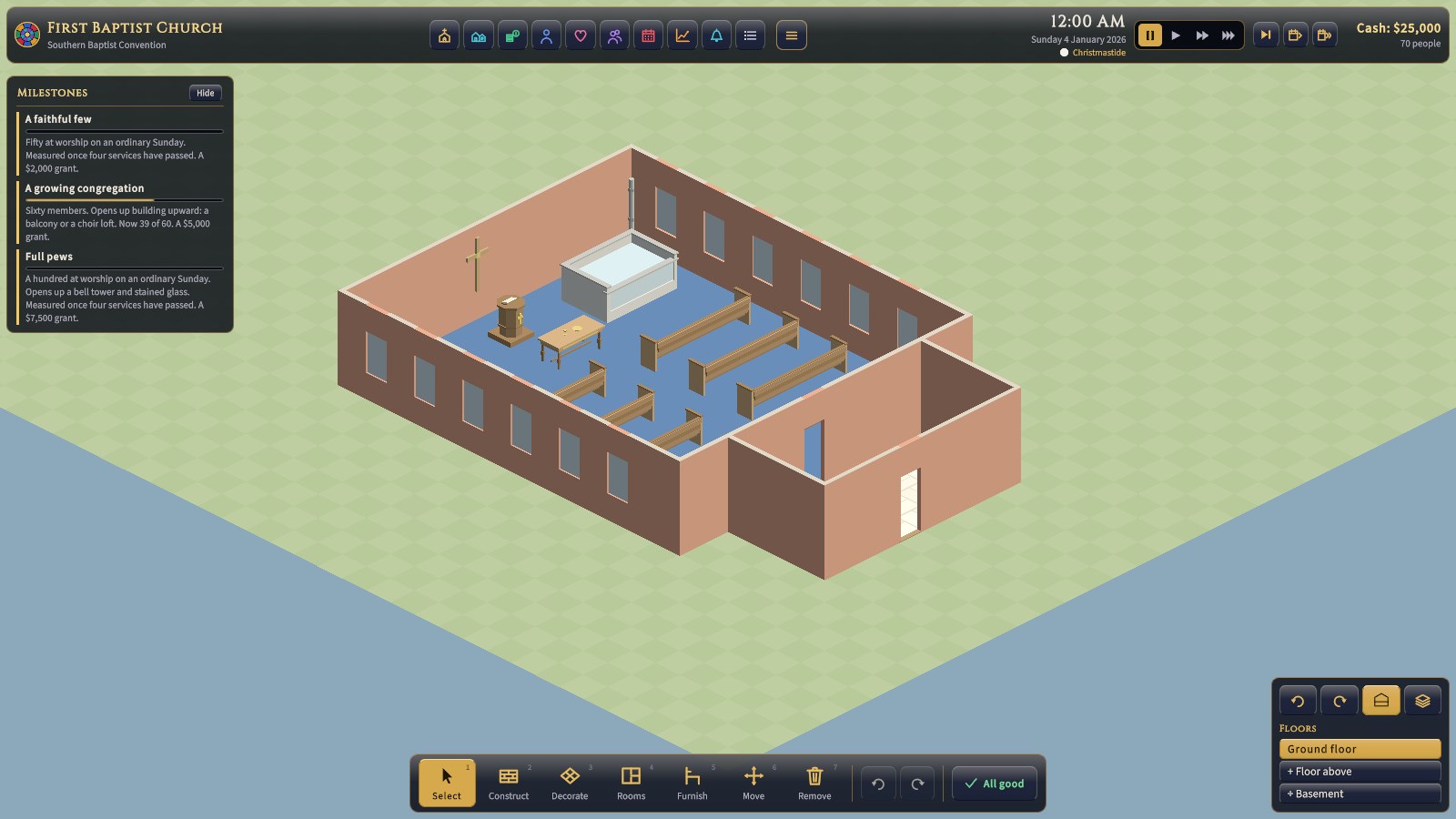
- Walls (V) steps through full height, cut away round the pointer, and cut away everywhere. The button is lit while the walls stand.
- Map views (the stacked layers) opens the list of map views, below.
Under them is Floors: the floors of the building, with the one you're looking at lit, and + Floor above and + Basement to add more (see Building your church).
Map views: sightlines, sound, light, access, pews, and crowding
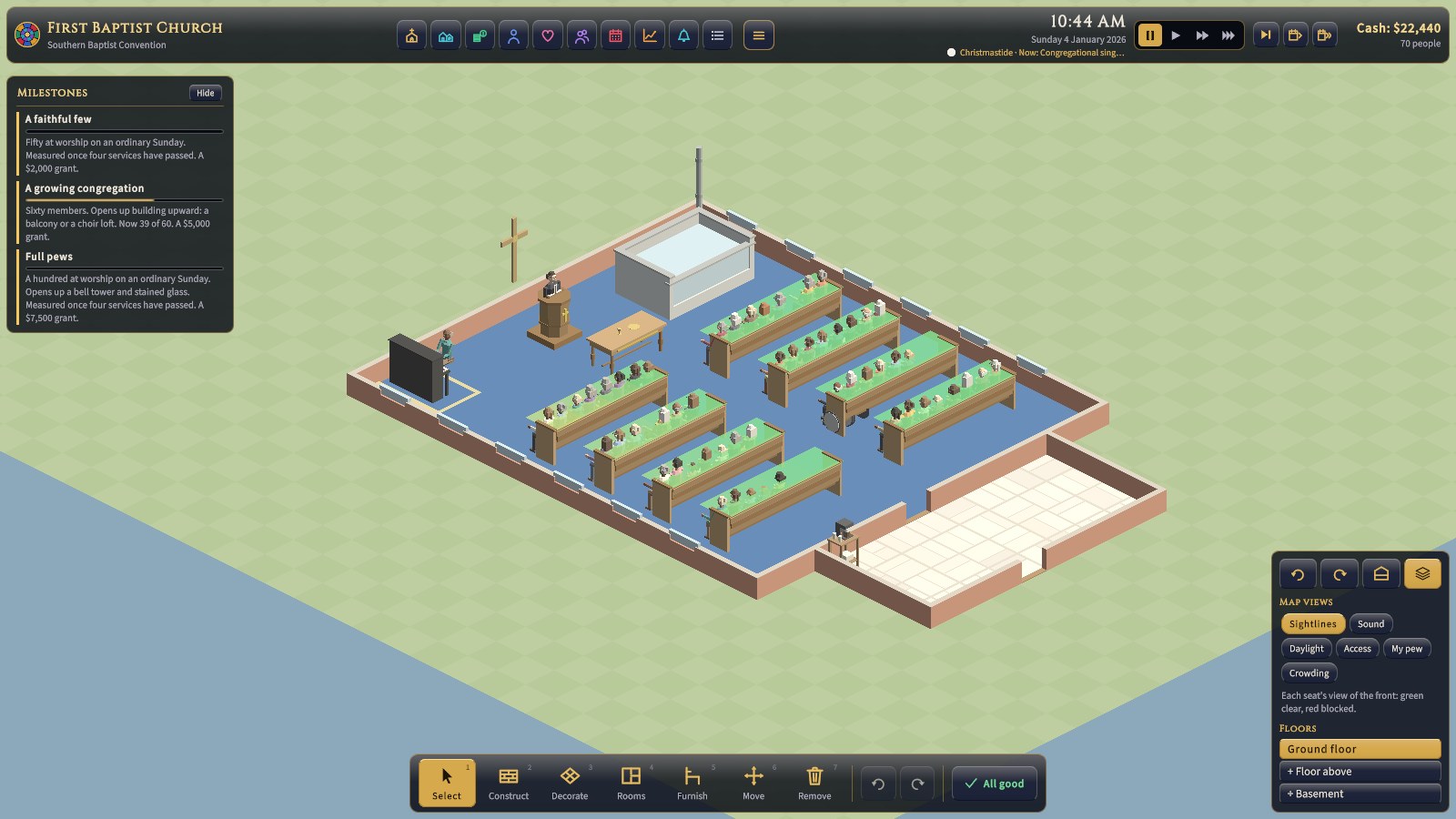
The map views colour the church to show how it works. Click Map views at the bottom right, then one of the six; its legend appears beneath, saying what its colours mean. One shows at a time: click another to switch, or the same one again to turn it off.
| View | What it colours | Which floor | More |
|---|---|---|---|
| Sightlines | Each seat by its view of the front of its worship room (the pulpit, altar, table, and font): green clear, through yellow, to red blocked. A seat is blocked when a pillar, an organ, or a screen stands in the way. | The floor you're looking at, so a balcony's seats show on the balcony | 4 |
| Sound | Each room by how its echo suits your tradition's music: green suits it, red fights it. Organs and choirs want a ringing room; bands a dry one. | Ground floor | 4 |
| Daylight | How much light the windows let in: bright yellow sunny, dark blue gloomy. South-facing windows let in the most. | Ground floor | 4 |
| Access | The way in from the street to the seats: green has no steps; red has steps a wheelchair can't climb (add a ramp). | Ground floor | 4 |
| My pew | The pews regulars think of as theirs: the deeper the gold, the more of them. Visitors who sit there cause friction. | Any floor | 2 |
| Crowding | Where people have walked since you turned it on: green where they pass freely, red where they bunch up. Turn it on before people arrive and leave it on; red at a door or in an aisle is a bottleneck that wider doors and aisles fix. | Any floor | 4 |
The map views show the picture; the room inspector gives the numbers. Click a room with Select and read Sound, light, and views: its reverb and whether it suits your music, its daylight, and how many of its seats have a poor view of the front.
Inspecting people and rooms
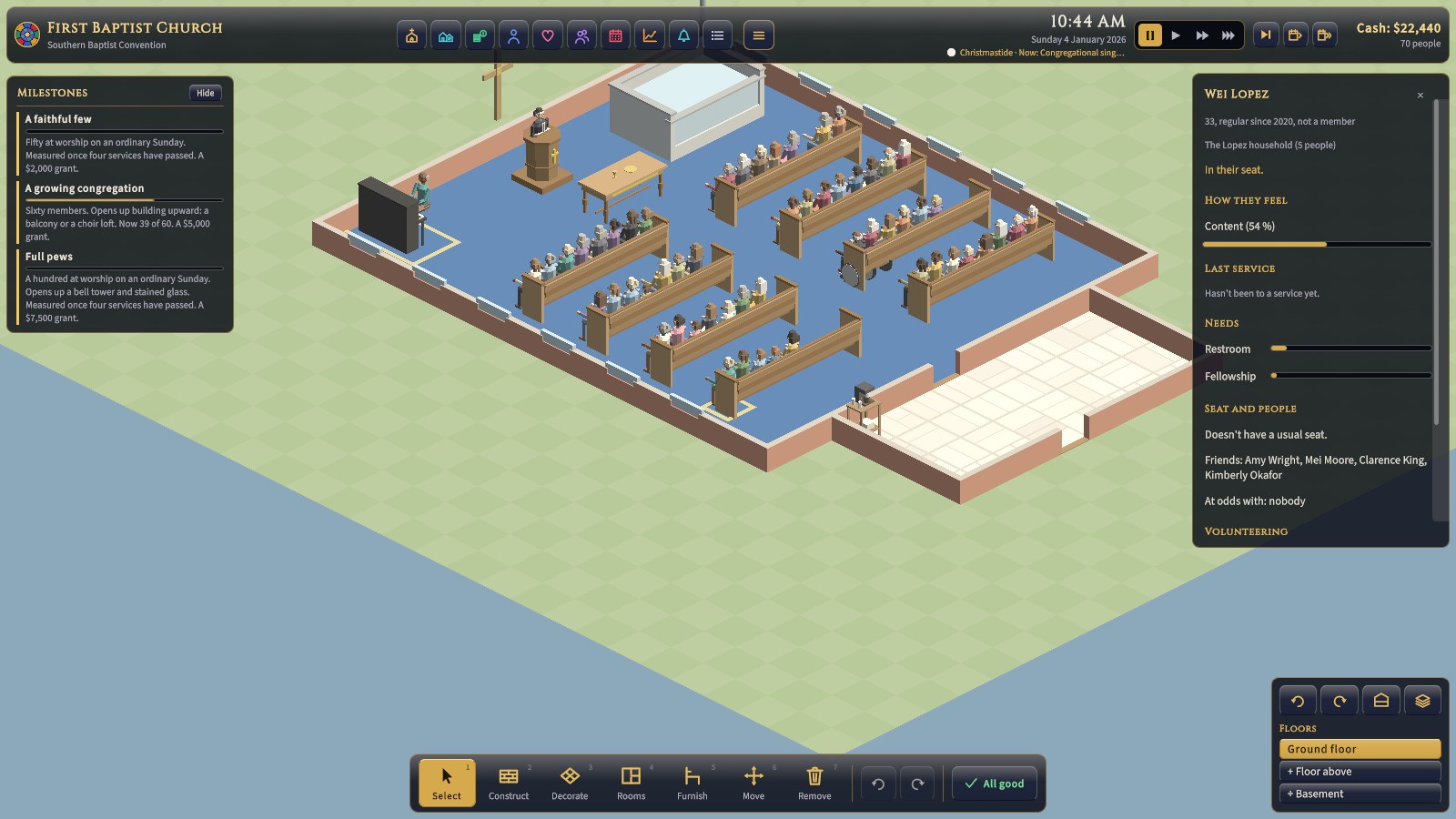
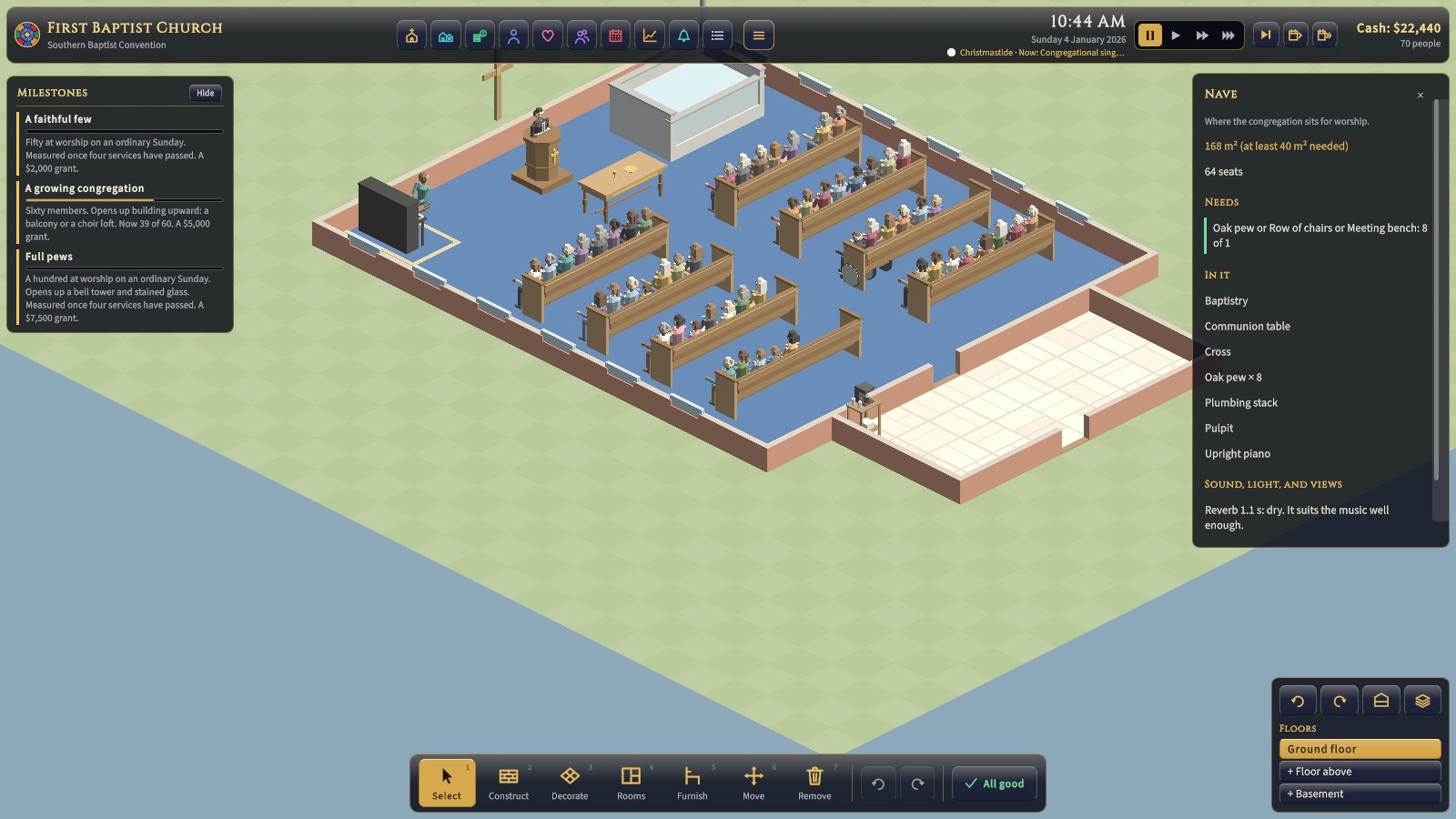
With Select, click a person to open their inspector on the right: who they are and what they're doing, their needs, how satisfied they are and every reason why, and their roles, with buttons to ask them to serve. Click a room for the room inspector: its area and seats, what it needs and has, its problems, and its sound, light, and views. The × (or Esc) closes either.
Dialogs
Some things need an answer: the sermon before each service, a decision (a leaking roof, a request for a wedding), the year in review each January, and a new church's choice of tradition. They open in the middle of the screen, crowned in gold, and the clock waits until you answer.
How time passes
Rejoice! paces itself around worship. Between services, time jumps ahead to half an hour before the next one. It then runs at a minute of game time per real second until half an hour after the service ends, so you can watch everyone arrive, worship, and go home.
- New and loaded games start paused. Press Space or click a speed to start the clock.
- The speeds set how fast services play: a minute, two minutes, or four minutes a second (+ and − step between them). The rest of the week is still jumped over.
- Time also waits by itself: while you have a building tool (anything but Select) chosen, while a management screen, menu, or dialog is open, and while an important message (a problem, a decision on a project, a conflict) waits at the bottom of the screen to be read. Routine news fades by itself.
- Next service runs on to half an hour before the next service, past the rest of this one.
- Skip a month and Skip a year fast-forward at once and finish with one summary of what happened.
Half an hour before each service, the game pauses to ask what the sermon will be about. Your choice can lift or trouble the congregation. See Worship and the church year.
Controls
| Action | Keys and mouse |
|---|---|
| Pan the view | WASD or the arrow keys, middle-drag, or push the mouse to the edge of the screen |
| Zoom | Scroll wheel (it zooms toward the cursor) |
| Turn the view | Q / E, or the turn buttons in the view controls (a quarter turn each) |
| Walls | V, or the walls button in the view controls: full height, cut away round the pointer, or cut away |
| Build | The build bar, or 1 to 7; pick a card from the tray, then click or drag. Right-click or Esc cancels. |
| Turn an item | R |
| Move an item | Move tool: click it to pick it up, click where it goes. Esc puts it back. |
| Undo / redo | Ctrl+Z / Ctrl+Y |
| Pause and speed | Space, or Pause by the clock; + and −, or the play buttons, for the speed |
| Inspect | Click a person or a room. Point at an item, or rest on a button or card, for what it is. |
| Step back / menu | Esc closes a selection or screen, then opens the menu |
| Cheat console | Alt+C (see Sandbox, cheats and quick reference) |
| Full screen | Alt+Enter |
Menus, saving and settings
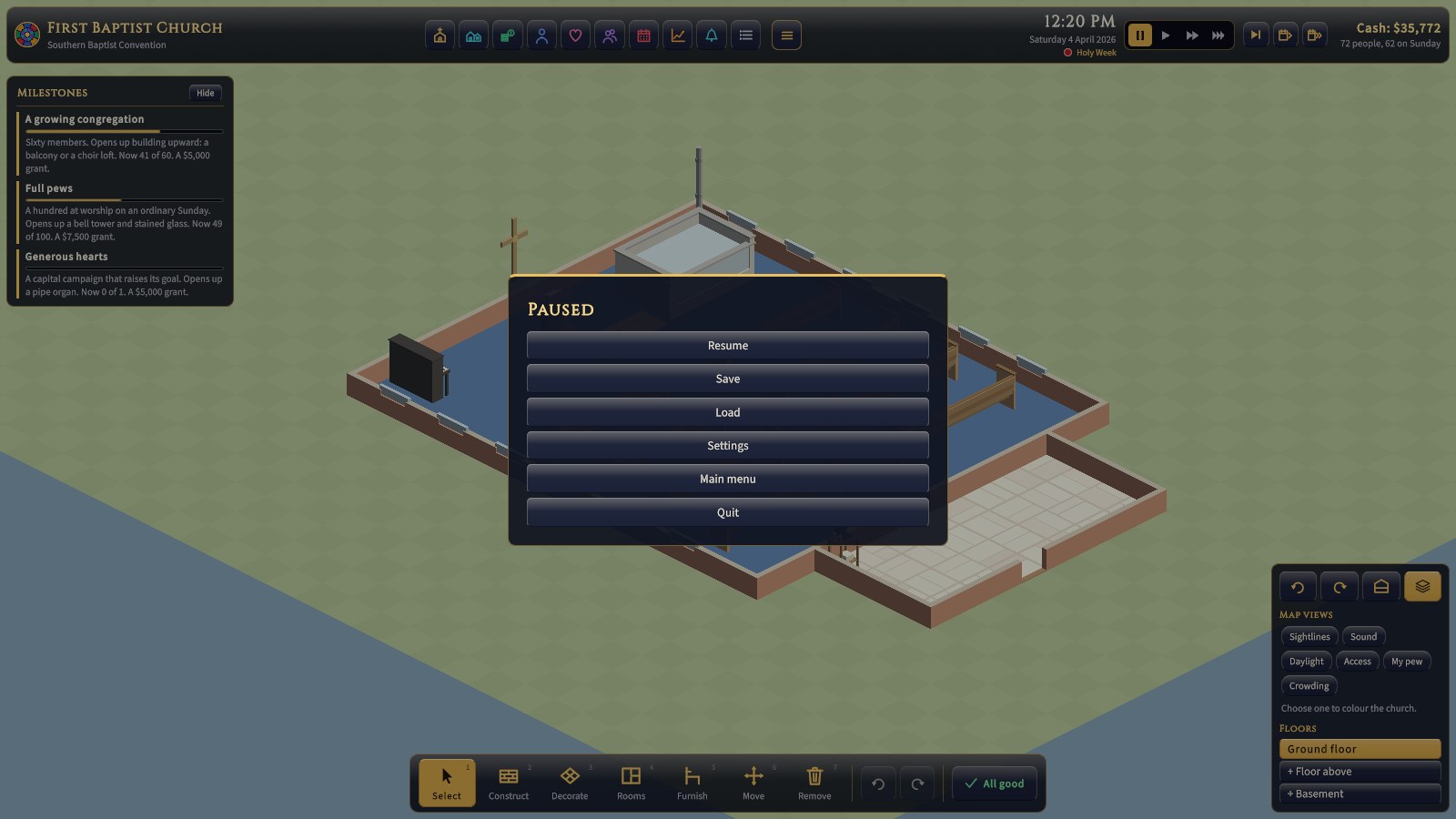
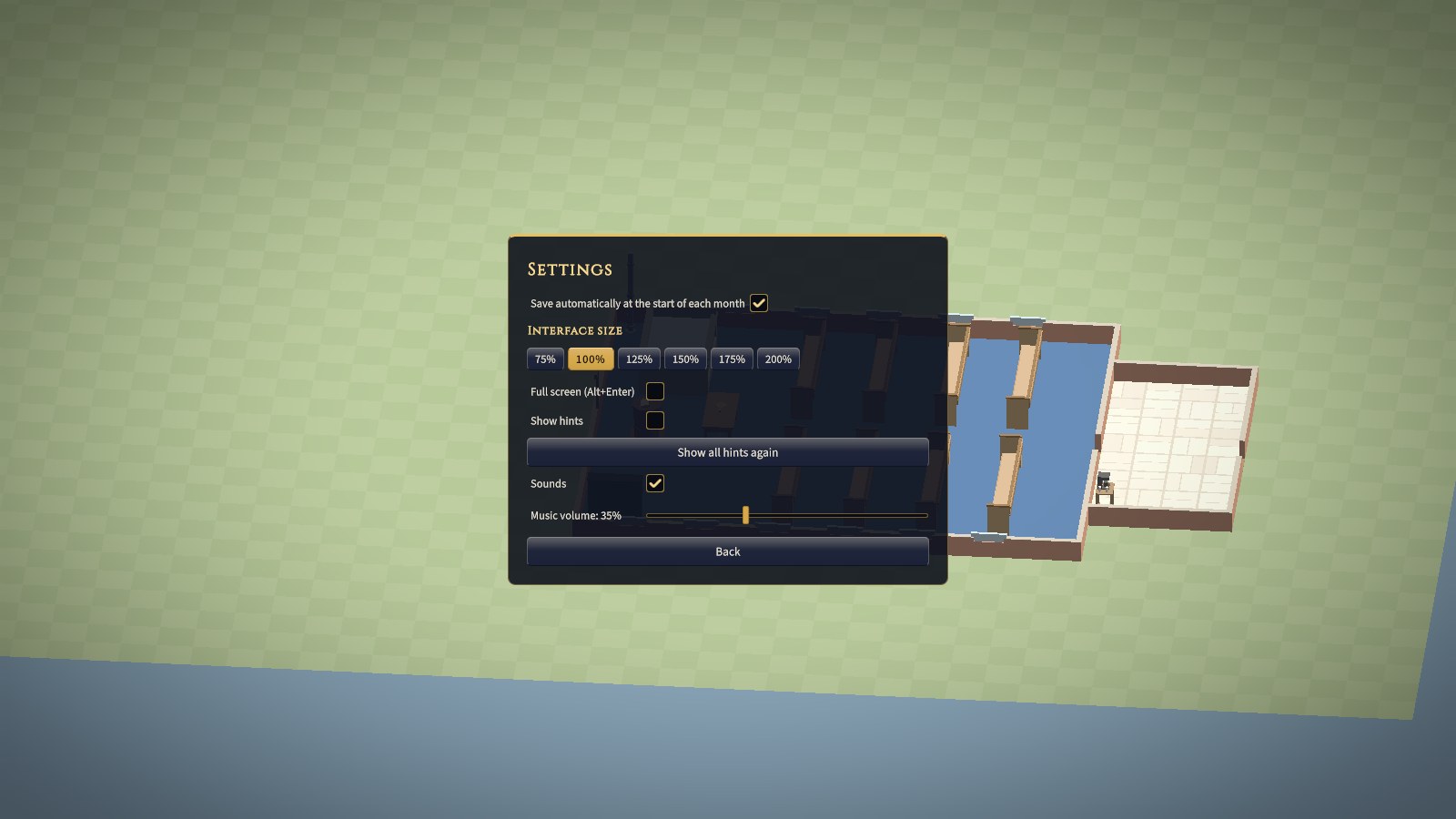
- Saves go to your own data folder, each with a picture of the church. A save that's been damaged or edited won't load, and the Load screen says so. With autosave on, the game also saves at the start of each month.
- Interface size scales every panel. The interface also scales with the window, which you can resize.
- Music volume sets how loud the background music plays; slide it right down to turn the music off.
- Hints are first-time tips that appear as you meet each part of the game. Turn them off, or use Show all hints again to start over.
Your first Sunday: a checklist
Whatever church you start with, these are almost always right. The game starts paused, so take your time.
- Read the building check. Every required item or room that's missing costs everyone 0.08 satisfaction after every service. Required items are usually cheap (a pulpit, a font, a lectern), so fix them first.
- Open Finances → Overview. Read the warnings and what's due on the 1st. If next month would overdraw you, act now.
- Set a maintenance budget (Finances → Budget). Even $200 to $300 a month keeps a small church's systems from failing.
- Set the endowment drawdown to 4 to 5%. The endowment earns about 6% a year, so anything up to about 5% is sustainable.
- Recruit volunteers: at least two greeters, two ushers, and two nursery workers. They're free, and greeters alone can turn a visitor's first Sunday around.
- Check access (Church → Church). Is there a step-free way in? Is there a hearing loop?
- Let a Sunday run, then open Last service and click a few people to see what they felt.
The next chapter explains why each of these matters.